AO3 News

Post Header

Published:
Tue, 26 Dec 2023 16:06:51 +0000
Tags:

Bullhorn and the words 'OTW Announcement'

In the past few weeks, the Archive of Our Own's Support Committee has been receiving a number of requests for assistance with an app that creates a paywall block after more than one hour of daily reading. We have no control over this (or any) mobile app, and do not approve of any paywalling of AO3 content. This is not the first time users have had problems with unofficial apps. For various reasons, the Archive is not developing a mobile app, so any app you may find available is unofficial and might even pose a security risk to use.

The AO3 site is always free to use through a web browser on any and all devices, including mobile devices. One of our core tenets is protecting fans and fanworks from commercial exploitation, so we don’t have ads or charge anyone to use the AO3, and we don’t approve of other people charging you money for AO3 content.

Because we haven't developed a mobile app ourselves, we are okay with individuals creating unofficial apps, provided that these apps clearly state they are unofficial, refrain from using our logos, and do not charge users for their usage. Forcing people to pay to use those apps is a violation of the AO3 Terms of Service section 1.D.5.

Please let other fans know that we are not connected to any apps they may find, and we are unable to assist them should they have issues with them. Remember AO3 is always available for free on your browser!


The Organization for Transformative Works is the non-profit parent organization of multiple projects including Archive of Our Own, Fanlore, Open Doors, Transformative Works and Cultures, and OTW Legal Advocacy. We are a fan run, entirely donor-supported organization staffed by volunteers. Find out more about us on our website.

Comment

Post Header

Published:
Mon, 28 Nov 2022 15:58:17 +0000
Tags:

Bullhorn and the words 'OTW Announcement'

As many readers know, Twitter has been undergoing changes which are destabilizing the platform, and there have been reports of frustrating user experiences as services are reduced. This is leading some individuals and organizations to explore other social media options.

The OTW has various accounts at Twitter for our individual projects as well as the OTW as a whole. We will be evaluating how Twitter fits into our news distribution efforts as the site changes continue.

During this time of possible transitions, we are taking the opportunity to remind readers and followers both where else you can find us, as well as to caution fans about new unofficial accounts that may start popping up.

Official vs. Unofficial Accounts

Many people choose to subscribe to OTW news either through their social media accounts or through feed readers. It is important to check, however, if those accounts are actually ours.

On occasion, fans will set up unofficial social media accounts, either on the same platforms we use or in spaces where we have no accounts. Unofficial accounts sometimes make that status clear and sometimes they don't. Similarly, fans on various platforms have set up RSS feeds of our news posts. These feeds are automated accounts and there is no one running them. The information may also only be available temporarily, and while they include official news, they are not controlled by the OTW and you can't reach us there.

The best way to check whether a social media account is official is to visit the ‘Where to Find Us’ page at the OTW website. This lists our live accounts across all platforms. If you're not subscribed to one of those, you are not following an official account.

Contacting Us

Official accounts are individually posted to by the Communications Committee. While we receive comments and questions on those platforms, these accounts are not always moderated and the platforms themselves may restrict our responses in different ways. To ensure that we receive your question or comment, it is therefore always best to get in touch with us through our contact form. Questions or comments regarding the Archive of Our Own should be sent to the Support team

If you're not sure who to direct your question to, try Communications, and if we don't have the answer we will send your message on to the OTW team who can help you.

The OTW can be contacted in 46 languages, something which is also facilitated by using our contact forms.

Access to Our Accounts

We are aware that people may have barriers to accessing our sites, whether it's a social media account or the OTW website itself. This is one of the reasons why we maintain official accounts in multiple locations.

While for many these restrictions may be due to local blocks from a school or business, there are also different nations which either temporarily or permanently block particular internet addresses.

If you are unable to follow us at one platform, hopefully another one of our sites will be available to you. We are always examining additional locations for official accounts in order to best reach fans, and you are welcome to send us suggestions. Although current staffing or workloads may prevent us from expanding in the near future, we will keep requests in mind as part of long-term planning.

Spread the Word!

It is tremendously helpful to the OTW when fans help us to share information either about our organization and projects or particular news releases. So please, help us reduce misinformation and boost relevant content by pointing people to our official accounts. You can also let other fans know what sorts of information they can find at our website, and that they can reach us through our contact forms. And if you come across unofficial accounts which are not listed as such, do let us know.

Thanks for your help!


The Organization for Transformative Works is the non-profit parent organization of multiple projects including Archive of Our Own, Fanlore, Open Doors, Transformative Works and Cultures, and OTW Legal Advocacy. We are a fan run, entirely donor-supported organization staffed by volunteers. Find out more about us on our website.

[Edited on November 30, 2022, 13:07 UTC: Due to off-topic replies, comments on this post have been disabled.]

Comment

Post Header

A common feature request we have received over the years is the ability to block other users from interacting with you, or hide content by users you specify. This has been something we planned on doing for a while now, and we have been actively working on developing it for the past few months. For that reason, we wanted to give you a brief update on how this work is going:

Blocking vs. Muting

We have been working closely with the Support and the Policy & Abuse teams, who are directly in contact with our users and can help us dig into all the feedback, feature requests and suggestions coming in. This helps us determine how we can satisfy most users' wishes to make their Archive experience safer and more enjoyable without creating new problems in the process.

After some discussion, we've decided to consider the new functionality as two sets of separate features:

  • Blocking: preventing certain users from interacting with you
  • Muting: excluding content by certain users from your personal Archive experience

In this manner, we can offer our users a set of options to curate their own experiences and add a layer of protection against harassment, without making it harder for people to create and interact with content on the Archive. For example, you might want to mute a user for posting a lot of fanworks about a pairing you don't like, but you're fine with the same user leaving comments on your own works. By separating the two concepts, we'll also be able to deploy an initial, focused set of options while continuing to work on the rest of the functionality behind the scenes.

However, there is a lot to be considered before we can write up the final design document detailing how we want these features to work and how they'd interact with existing Archive functionality. Due to the scope of the change, both of these features come with their own challenges and pitfalls that need to be addressed before we can move forward.

Discussions need to address dozens of little details like, "If a list of search results includes muted content, does the number shown at the top need to be adjusted? How does this interact with the numbers in the filters?" as well as big picture considerations like, "What if a challenge has several mods, each with their own lists of blocked and muted accounts?"

Once we actually start writing the code, we might run into technical issues that hadn't been apparent during the planning stages and that require substantial changes to our plans. As such, we'll only be ready to announce these features when we're certain they're very close to done, which we understand is frustrating for those of you waiting for this functionality.

Money vs. Time

While the OTW has enough money for a contractor to potentially handle the coding (thanks to your generous donations!), to do so in an effective manner, we first need to tell them in really fine detail what we actually want, since we're more familiar with complex features like collections and challenges and have a better idea of the way people use the site and the problems they run into.

This is very often the most complex part of a project of this scope, and something we can’t easily outsource without risking a final result that will cause more issues than it solves.

Additionally, the people who need to be involved in this conversation because they have a lot of knowledge about the inner workings of the Archive and the feedback provided by users over the years, are the same people who are needed to keep the Archive running on a day to day basis, fix bugs, make sure the backend stays up to date, and keep the Support and Abuse teams running smoothly.

All of this is done by volunteers, and sometimes other commitments need to come first to keep the site up and functional. As a result, every large or even medium-sized project takes a long time from an initial idea to the rollout of a new feature.

In the meantime...

While built-in, easy-to-use blocking and muting tools are still a ways off, our Unofficial Browser Tools FAQ lists some third-party scripts that let you filter out unwanted content. We're also working on other important changes to give you more control over your Archive experience.

In the past year, we've added the ability to turn off comments or freeze specific comment threads on your works. We're also working on changes that will allow you to opt out of receiving gifts or collection invitations, the same way you can control others' ability to list you as a co-creator on works. (As with most major changes, there will be dedicated news posts with more information on these changes when they're ready to be released.)

While it has always been possible to use the Archive skin system to hide specific works from yourself, we've recently made it possible to hide all works from specific creators as well. To do this, create a site skin and use the following CSS:

  • .work-000 { display: none !important; } to hide a specific work. Replace 000 with the ID of the work you want to hide. The work ID is a series of numbers that can be found in the work's URL. The ID comes immediately after /works/, e.g. https://ao3.org/works/000/chapters/123.
  • .user-000 { display: none !important; } to hide all works by a specific user. Replace 000 with the ID of the user whose works you want to hide. A user's ID is a series of numbers that can be found on the user's profile in the "My user ID is" section. A user's ID does not change if the user changes their name.

To hide multiple items, you can separate the selectors with a comma: .work-000, .work-149319, .user-000000 { display: none !important; }

For now, this approach only applies to work listings and work search results, not bookmarks. However, we're working to extend it to bookmarks as well, and we'll have a more detailed tutorial once we're done. (Please note that if you've previously hidden works with selectors such as .blurb#work_000, it will continue to work, but it will not automatically carry over to bookmark listings and search results in the future.)

We are sorry this is taking longer than anticipated, and we hope this update could provide a little insight into the reasons for this.

Please bear with us while we sort out the details, and thank you for all your kind words here and elsewhere, especially during this past year. We can't reply to all tweets and comments, but we appreciate your support very much!

Comment

Post Header

In the next few days, we will be adding a new option that allows work creators to turn off comments. The option will be available on the forms for posting or editing individual works as well as the form for updating multiple works at once, and we've done some minor rearranging of the forms to accommodate the new option.

What turning off comments does

Turning off comments will replace the comment form at the end of your work with a notice that says, "Sorry, this work doesn't allow comments."

If your work already has comments, all existing comments will remain accessible to you and anyone who can access your work. You will still be able to delete any unwanted comments or mark guest comments as spam.

Users who have left logged-in comments on your work will also still be able to delete their comments.

How to turn off comments on individual works

In the "Privacy" section of the posting and editing forms for individual works, you will find a set of options called "Who can comment on this work." It will have three options:

  • Registered users and guests can comment
  • Only registered users can comment (this is equivalent to the old "Disable anonymous commenting" option)
  • No one can comment

By default, it is set to "Registered users and guests can comment." To prevent anyone from commenting on your work, choose "No one can comment" and save your changes.

How to turn off comments on multiple works

If you'd like to change the comment settings for more than one work at a time, you can use the Edit Multiple Works page. (Please refer to "How do I edit multiple works at the same time?" for information on accessing this page and selecting works to edit.)

Once you've chosen the works you want to edit, locate the "Settings" section of the form. There will a set of options called "Who can comment on these works," and it will have four choices:

  • Keep current comment settings
  • Registered users and guests can comment
  • Only registered users can comment (this is equivalent to the old "Disable anonymous comments" option)
  • No one can comment

By default, it is set to "Keep current comment settings." To prevent anyone from commenting on the works you are editing, choose "No one can comment" and save your changes.

Other options for controlling comments on your works

Please check out our Comments and Kudos FAQ for more information on controlling comments on your works, including:

Update 15 August 06:22 UTC: These changes are now live!

Comment

Post Header

In order to improve security and maintainability, we've overhauled the code for the Archive of Our Own - AO3 login system. As we previously announced, this overhaul caused all users to be logged out. If you know your username and password, you should be able to log in as usual. However, here are a few things to check if you're having trouble.

Have you activated your account by following the link provided in your registration confirmation email?

If you've recently signed up to AO3 and are having trouble logging in, make sure you've activated your account! Within 24 hours of signing up, you should have received a registration confirmation email from [email protected], asking you to activate your AO3 account using the included link. The activation email usually arrives right after creating your account, but some email providers can considerably delay the delivery.

Once you've activated your account, you should receive an activation confirmation email from the same email address: [email protected]. Sometimes, these emails can get lost in spam filters or automated inbox sorting, so make sure you check these as well! If you can't find either your activation request or an activation confirmation email, and it's been over 24 hours since you registered, you can contact our Support committee asking for your account to be activated by an administrator.

If you're trying to log in with your username, is it correct?

To check if a username exists and belongs to you, go to your browser address bar and enter https://archiveofourown.org/users/USERNAME, replacing "USERNAME" with your username. If the account exists, this will take you to its Dashboard. You can then make sure the icon, profile information, or public works or bookmarks for that account are yours.

Please note that usernames can only contain lower- and uppercase letters from A-Z, numbers, and underscores (_).

If you're trying to log in with your email address, is it correct?

If you have more than one email address, it may help to go to the New Password page, fill in your email address, and press "Reset Password". If the email you enter isn't associated with an account, you'll be given an error message and no email will be sent. Doing this for all your email addresses can help you determine which one you used for your AO3 account.

You will be able to log in with your regular password even after a reset email is sent (just ignore the email).

Is your password correct?

If you've determined the username or email you're trying to log in with is correct, the problem could be your password. Fill out the form on the New Password page and a link allowing you to change your password will be sent to you.

If you do not receive the email within 24 hours, make sure to check your spam folder or automated inbox sorting. The email will have the subject "[AO3] Reset your password"

Edit (28 December, 10:43 UTC): Due to changes in the way passwords are sanitized, you will need to reset your password if it previously contained the < or > character. (You can continue to use < and > in your password; it just needs to be updated for our new system.)

Is your browser or a password manager automatically entering your username/password?

If you're using your browser's autocomplete or a password manager to log in to AO3, there's a chance the saved username/password combination could be incorrect. To check, delete the pre-filled login information and re-type your username and password manually. Remember to update the autocomplete/password manager entry with the working combination later, to prevent this problem from reoccurring.

Have you tried deleting your browser's cookies?

Sometimes, login issues can be caused by misconfigured or corrupted cookies. Cookies issues may lead to an error message saying that the password or username you entered doesn't match our records, even when they are correct, or a condition where you get a successful login message but are not actually logged in. To make sure your cookie settings aren't keeping you from accessing AO3, check that your browser is set to accept cookies from us and clear your cookies before attempting to access the site again. Instructions for managing cookies differ by browser and browser version, but here are some links to get you started:

Have you tried disabling browser extensions/add-ons?

Sometimes, browser extensions or add-ons can interfere with the login process. To ensure your browser settings are not preventing you from logging in, disable any additional software associated with your browser by following the links below.

Have you tried logging in using a different browser or device?

If you can successfully log in to AO3 using alternative means, the problem you're encountering is most likely a problem with your browser or device, rather than your account. If this is the case, we encourage you to try the steps above in your preferred browser, and if it still doesn't work, let us know of such issues by contacting our Support committee, so that we can investigate further. Please remember to include details about the browser(s) and device(s) you've tried, as well as the problem itself.

Have you tried everything above, and still find yourself unable to log in?

If you've tried all these steps and are still having trouble logging in, please use this contact form to contact our Support committee directly. Do not share any account information in the comments on this post as all comments are public and can be seen by anyone who accesses this page. Comments containing account information will be removed without reply.

As always, please remember to include as much detail as possible about the specifics of your problem, such as error messages received and your browser/device configuration, so that we can troubleshoot most effectively. Also include which of the above steps you have tried, so we can rule those issues out!

Edit (28 December, 10:43 UTC): Due to changes in the way passwords are sanitized, you will need to reset your password if it previously contained the < or > character. (You can continue to use < and > in your password; it just needs to be updated for our new system.)

Comment

Post Header

If you're one of the many users moving to AO3 from other fandom spaces where English isn't widely used, we'd like to welcome you—we're so excited to have you! AO3 has some features that may not work the way you're used to, so we'd like to take a moment to go through some of the basics.

Creating an account and introducing yourself

Everyone is welcome on AO3! You don't need to contact Support to provide your fandom history when you want to create an account. If you don't have an account and would like one, check out How do I create an account? Once you're logged in, you have full access to all content on the site.

If you'd like to introduce yourself, you can add that information to your personal biography on your profile page once you're logged in. Check out the How do I edit my profile? question in our FAQ for help! Be aware that any information you add to your profile is available for anyone to access, whether they're logged in or not.

Adding your works

If you'd like to move your works from other forums or blog sites to AO3, you can copy and paste your work manually, or you can use our Import tool. Unfortunately, importing from many sites will bring across a lot of unnecessary code.

We ran a test import from Lofter—a popular site among Chinese-speaking fans—and we've detailed the instructions below, including how to remove the excess code. These instructions may work with other blog sites as well.

  1. When you're logged in, select "Import Work" from the "Post" menu at the top of the page.
  2. Enter the URL(s) of the work(s) you want to import in the first input field.
  3. You shouldn't need to change the custom encoding.
  4. Under "Import as" you can choose to import the URL(s) you entered as separate works, or as chapters in a single work. The default is to import them as separate works.
  5. Under "Preferences", don't select "Post without previewing" as you will need to make edits to the draft. You can choose to "Lock all imports to registered users only" if you would prefer only AO3 users have access to the work.
  6. Select the Rating, Warnings, and Fandom(s) that apply. Note these selections will apply to all the URLs you import. You can edit these later, if necessary.
  7. Fill in any of the other tag options—you can select the blue question mark icon for an explanation (in English) of each of these fields. You can also reference the FAQs (linked below) for a translated explanation.
  8. Enter any Author's Notes you want to include.
  9. Select "Import".
  10. Edit the draft work.
  11. Delete all lines of text and code before the first word and after the last word in the body of your work.
  12. Make any other formatting adjustments as you like. You can select the button "Rich Text" to get a better idea of how the work will appear on the screen.
  13. To save your changes you can:
    • Select "Preview" to check you're happy with the work and then "Post" to publish it, or
    • Choose "Post without Preview" to publish it immediately.
    • To keep it as a draft, you can select "Save Without Posting". Note that a draft is automatically deleted 30 days after it was created.

Our Tutorial: Posting a Work on AO3 and Tutorial: Importing Text Based Works, as well as the Posting and Editing Works FAQ can also help you with any questions you might have about the posting or importing processes.

Tagging your works

On AO3, fanworks are grouped by fandom (that is, the title of the source canon the fanwork is drawn from), not by character or pairing. You can find some examples of these on our Fandom listing page. Fandom is a required tag for each work, while relationships and characters are optional. Unfortunately, entering your ship tag in the Fandom field makes your work very difficult for other users to find, as the site can't link such works with other works about the same ship.

To make best use of our tagging system, and to allow other users to find your work, here are some tips:

  • Put the name of the canonical source material in the Fandom field. That might be a TV show, book or book series, manga or anime, computer game, etc.
    • If you are writing about a real person, we call that Real Person Fiction (or RPF) and use different fandom tags to represent these works. For example, you can tag with the name of the sports team, band name, or if you're writing about an actor you will likely find a RPF variation on the fandom such as Wicked (RPF).
    • If your work is in two fandoms, or a crossover, enter the two fandom names as separate tags.
  • While Relationship and Character tags are not required, users often search for them, so it's a good idea to complete these fields. You can tag in your own language and we will connect your works with others about the same relationship or character.
    • Relationship canonical (or 'official') tags are sorted alphabetically by the characters' family names, according to the Latin alphabet. The Relationships field does not indicate who tops or bottoms, or who doms or subs.
      To indicate who is top/bottom or dom/sub, you can use the Additional Tags field! In this field, use separate tags for each character and use their full names. For example "Top Todoroki Shouto" and "Bottom Midoriya Izuku".

Hiding your works from search engines

When you post or import a work, you can choose to lock the work so that only those who are logged in to an AO3 account can find it. Check out How do I control who can access my works? for how to do this for new or existing works.

If you're importing works, you can check the box under Preferences next to "Lock all imports to registered users only," just below where you paste in the URL(s) to the work(s) you're importing.

Checkbox to lock your works to logged-in users only

Things you can't post

Currently, our Terms of Service are only available in English, which makes it difficult for users who don't speak English to know what is and isn't permitted on the site. So to help you out, here's a non-exhaustive list of content that we don't allow on AO3:

  • Introduction or blog style posts. Please post your introduction in your Profile, as outlined above.
  • Commercial promotion. You may not solicit money from anyone, either in your works, your profile, or comments on yours or other people's works. It doesn't matter if you're asking for donations, selling commissions or doujinshi, or promoting a published work of which you're a fan. This site is strictly non-commercial.
  • Works that directly attack other fans because of the ships they like. You are welcome to post works about whatever ship you like, and to avoid works about ships you don't. However posting works that are attacks on people who ship something you don't like may be ruled as harassment.

Posting these kinds of works may incur penalties on your account.

Where can I get more information?

Our Archive FAQ, and important announcements are a good place to find a wide range of information.

If you're uncertain about what content is allowed, contact Policy & Abuse. If you have questions about the site that aren't answered in our other documents, contact Support. Both teams will be glad to answer any questions you have.

All of these resources are available in a number of languages!

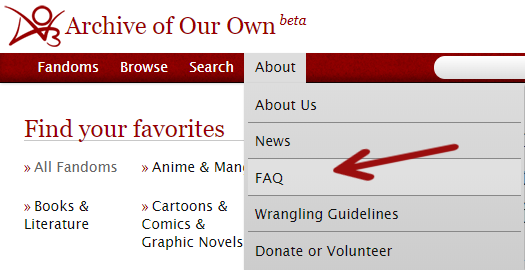
To access the FAQ or News posts in other languages, go to the main menu (below the name of the site) and select "About" and then "FAQ" or "News."

Navigating to the FAQ page

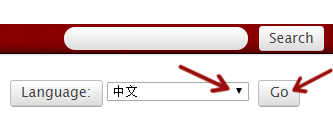
To change the language, select the menu, scroll to the language you'd prefer, and then select the "Go" button.

Changing the language

Comment

Post Header

Published:
Sun, 22 Jul 2018 12:57:37 +0000
Tags:

Now that we've finished rolling out the new search and filtering features, it's time to give our previous series on hidden search operators and neat tricks an update as well.

Works

As before, you can use all of these suggestions in the main search box (in the site header), the "Any field" box in the work search, or the "Search within results" field in the filters. Keep in mind that this input is case-sensitive and the space after the colon is non-optional. Just copy-paste what you need, mix and match as you like, and bookmark the result in your browser for quick access to fanworks perfectly tailored to your tastes!

Work Properties

  • expected_number_of_chapters: 1 for single-chapter works only
  • -expected_number_of_chapters: 1 for multi-chapter works only
  • creators: username for works by a particular creator
  • -creators: username to filter out all works by a particular creator
  • restricted: true for restricted works (if you're logged in to access them)
  • restricted: false for public works
  • work_skin_id: 277 for works using a specific skin (Homestuck, in this case)
  • imported_from_url: xyz for works imported from a specific site or domain
    • xyz cannot start with http://, so use an asterisk instead (e.g. *username.dreamwidth.org)
    • xyz may contain periods and slashes and asterisks, so *username.dreamwidth.org/1234.html and *username* would both be fine
  • notes: string or endnotes: string for works with notes or end notes containing a particular string
    • string can be any single word or a phrase enclosed in quotation marks
    • notes: "ball game" notes: peanuts will find works whose notes contain the words "ball" and "game" together and in that order, as well as the word "peanuts"
  • summary: string for works with a particular word or phrase (in quotation marks) in the summary
  • backdate: true for works that have been backdated
  • backdate: false for works that have not been backdated
  • otp: true for works tagged with only one relationship (experimental!)
    • can be used by itself or in combination with a specific relationship tag (e.g. chosen from the filtering options)
    • will exclude all A/B works where A/B might only be a side pairing, but also all A/B works with other side pairings
    • will include works with multiple relationship tags if they're all synned to the same canonical tag
  • otp: false for works tagged with multiple relationships (experimental!)
  • -relationship_ids: * for works with no relationship tags at all
  • collection_ids: * for works that are part of a collection
  • series.title: string for works in a series whose title contains a particular word or phrase (in quotation marks)
  • series.title: * for works that are part of a series
  • -series.title: * for works that aren't in a series

Sorting

By work properties
  • sort:words to sort works by word count, longest works first
  • sort:>words to reverse the sorting order and show shortest works first
  • sort:author to sort works by the creators' pseuds, A-Z
  • sort:<author to reverse the sorting order and show pseuds starting with Z first
  • sort:title to sort works by title, from A to Z
  • sort:<title to reverse the sorting order and show titles starting with Z first
By date
  • sort:posted to sort from newest to oldest, going by the day they were posted to the Archive
  • sort:>posted to reverse that order and show oldest first, going by the day they were posted to the Archive
  • sort:updated to sort from newest to oldest, going by the day they were originally published (if backdated) or had a chapter added (this is the default sort)
  • sort:>updated to show oldest works first, going by the day they were originally published (if backdated) or had a chapter added
By feedback metrics
  • sort:kudos to sort works by amount of kudos, most kudos first
  • sort:>kudos to reverse the sorting order and show least kudos first
  • sort:comments to sort works by number of comments, most comments first
  • sort:>comments to reverse the sorting order and show fewest comments first
  • sort:bookmarks to sort works by number of bookmarks, most bookmarks first
  • sort:>bookmarks to reverse the sorting order and show fewest bookmarks first
  • sort:hits to sort works by number of hits, most hits first
  • sort:>hits to reverse the sorting order and show fewest hits first
Within a range

You can also specify a range of works with some of these properties, namely words, hits, kudos, comments, and bookmarks, with the following options:

  • words:1000 (works with exactly 1000 words)
  • words>1000 (works with more than 1000 words)
  • words<1000 (works with less than 1000 words)
  • words:1000-5000 (works between 1000 and 5000 words)

Text Searches

Due to the way Elasticsearch 6 handles query strings, putting several words or phrases into the search box will result in a list of works with all of those words in one field (such as the notes, or the title). For example, searching for BTS love will bring up a work with the phrase "I love BTS!" in the notes, but will not find works with the BTS fandom tag and the word "love" in the title.

To make sure that your input is matched against all possible work properties, separate your search terms by an AND, such as BTS AND love or BTS AND puppies AND "slow burn". This will search for any combination of those words in all fields.

However, the search operators above can just be added on, separated by spaces, resulting in a query like Discworld AND library expected_number_of_chapters: 1 sort:>posted to find all single-chapter works with the words "Discworld" and "library" anywhere in the title, tags, notes, or creator's username, sorted to show oldest first.

Bookmarks

We have made some changes to the way bookmarks are stored and displayed, enabling us to differentiate between properties of the bookmarked work and properties of the bookmark itself more easily. As a result, bookmarks now allow for more finegrained searches, but require a little more input to find exactly the bookmarks you're looking for.

Bookmarked Work Properties

In addition to any word or phrase that will be matched against the title, summary, notes, and tags of a work, you can also use the following in the "Search within results" field (for filtering) or the "Any field on work" field (for bookmark searches):

  • restricted: true for bookmarks of restricted works only
  • restricted: false for bookmarks of public works only
  • complete: true for bookmarks of complete works
  • complete: false for bookmarks of works in progress
  • bookmarkable_type: ExternalWork for bookmarks of external works
  • bookmarkable_type: Series for bookmarks of series

Bookmark Properties

Likewise, you can put any word or phrase in the "Search bookmarker's tags and notes" field (for filtering) or the "Any field on bookmark" field (for bookmark searches). You also have the following options:

  • private: true to filter for your private bookmarks only (if you're logged in to access them)
  • private: false to filter for public bookmarks only
  • tag: * for bookmarks with tags added by the bookmarker

Searching and filtering by language

You can use language codes to limit your searches to works or bookmarks in a particular language (or several languages in one search), or exclude items in a particular language. You can use this list of language codes for reference and replace abbreviation with the code for the language you want.

All these options will work in the main search box (in the site header), the "Any field" box in the work search, and the "Search within results" field in the filters, as well as the "Any field on work" field in the bookmark search and the "Search within results" field in the bookmark filters.

  • language_id: abbreviation for items in that language
  • language_id: abbreviation OR language_id: abbreviation for items in either of those languages
  • -language_id: abbreviation to filter out all items in that language

Comment

Post Header

Published:
Mon, 18 Sep 2017 16:47:51 +0000
Tags:

Shortly after we upgraded the Archive to Rails 4.2, users began reporting they were being redirected to the login page when submitting forms (e.g. bookmarking a work, or posting a comment). Our coders were unable to find the cause of this problem and hoped it would resolve itself when we upgraded to Rails 5.1.

Unfortunately, the upgrade did not fix the issue, and further research has revealed this is a bug within Rails itself. The bug mainly -- but not only -- affects iPhone Safari users, and is most likely to happen when submitting a form after closing and re-opening your browser, or after leaving a page open for a number of days.

There's currently no official fix for this issue, but you may be able to work around it by using your browser's "Back" button and submitting the form again. We'll also be implementing a temporary workaround on our end by making session cookies last two weeks. This means it is very important to log out of your account if you are using a public computer. If you simply close the browser and leave, you will still be logged in and the next person to use the computer will be able to access your account.

Once an official fix becomes available, we will apply it as soon as possible. There's no word on when this will be, but in the meantime, we'll keep looking for workarounds.

Update, 23 September 2017: If you have JavaScript disabled in your browser and were getting Session Expired errors when trying to log in, the problem should now be fixed!

Comment

Post Header

Published:
Thu, 23 Mar 2017 16:13:46 +0000
Tags:

We're pleased to announce that after seven months, the Archive of Our Own is once again available on the Internet Archive's Wayback Machine!

Late last year, the AO3 suddenly vanished from the Wayback Machine, a non-profit archiving service. We reached out to its maintainers several times during this period, to find out why AO3 pages weren't archived anymore. The project's director contacted us this week and explained the problem.

Rather than excluding only pages belonging to users who had asked for their content to be taken down (e.g. their profile page or specific works), the entire archiveofourown.org domain had been mistakenly excluded. The folks at the Wayback Machine have corrected this problem and the AO3 is available there once more. (Check out the Archive homepage from 2010!)

While the Wayback Machine is a great service, and another useful tool in the efforts to preserve fanworks and fan history, this is a good reminder not to keep all your eggs in the same basket. Download works you might want to read again in a year, crosspost your own works to other sites, and be sure you save back-ups locally and/or with a trusted online service.

If you're concerned about the public availability of your works, check our "How can I hide my works from non-Archive users?" FAQ for information that can help protect your privacy.

Comment

Post Header

Banner by Erin of a spotlight on an OTW logo with the words 'Spotlight on Abuse'

Thinking about your own death is difficult under normal circumstances. But what happens when you consider the effect it would have on your identity as a fan? If you're like a lot of us, it probably comes with a moment of panic:

"What happens to all my fanworks?!"

Or possibly: "What happens if my mom--or my partner, or my kid--finds my fanworks?"

There's no doubt that having a significant, distinct online identity--which may have websites, blogs, fanworks, email addresses, and social media accounts--adds a level of emotional and legal complexity to the real final frontier: death.

RIP ... but keep the kudos coming?

What is your expectation for your fanworks and accounts after your death? What do you want to have happen to them? In at least one case, fans made the decision: In 2007, fans and friends of fic author Thamiris, who died earlier in the year, donated money to an effort to preserve her website and make her LiveJournal account permanent. Fanlore has a profile of the author and the effort.

For most of us, though, whether your online presence is simple or complicated, someone will have to deal with your electronic trail. With this in mind, in 2012 the U.S. government recommended having a social media will, a document which can be used by people of other nationalities as well. An online executor would be responsible for the closure of email addresses, social media pages, and blogs and would carry out the final wishes of the deceased.

But again, that may still be a bracing prospect if your executor is not a fellow fan and will have to decide what to do with the explicit Destiel fic you posted in 2010.

Identifying next of kin for AO3

With that in mind, the Archive of Our Own has an option to name a Fannish Next of Kin--someone who would gain access to your account in case of death or incapacitation. By naming another individual who can act on your behalf, you can decide ahead of time how you want your AO3 accounts handled going into the future.

Maybe you want your works preserved; maybe you want them orphaned or deleted; maybe you want to have them open to remixes and related works. Whether your fannish identity departs with you or keeps on keeping on--that's a choice you can make. Learn more about how the Fannish Next of Kin works.

A Fannish Next of Kin can be part of your bigger plan for your social media will, and can ensure that your readers have someone to contact in case of questions about that unfinished WIP or whether or not their favorite work will get a sequel. However you want your works handled, this option will allow you to have a plan in place.

Mirrored from an original post made at the OTW News Blog.

Comment

Post Header

Published:
Thu, 16 Oct 2014 17:54:12 +0000
Tags:

What Are Work Skins?

Works skins allow you to customize the appearance of your works beyond the basic HTML tags the Archive supports. In order to do this, they use Cascading Style Sheets (CSS), a style language that allows you to define a set of rules for how specific HTML elements in your work should be displayed.

This guide will take you through creating and applying a work skin on the Archive. For a more in-depth tutorial on how work skins and CSS work, we invite you to take a look at our tutorial on styling works, or check out some of the HTML and CSS resources listed at the end of this article.

Creating and Applying a Work Skin

1. Create the Work Skin

From your AO3 Dashboard, choose Skins from the sidebar, then select My Work Skins. Select Create Work Skin at the top left to open the Create New Skin webpage.
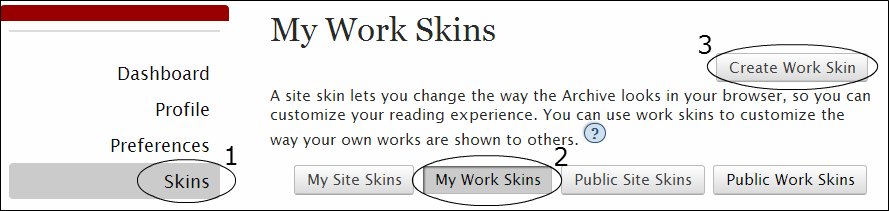
My Work Skins Page

2. Enter Work Skin Information

In the shaded area labeled About, ensure that Type is set to "Work Skin". Then, give your work skin a unique title (e.g., "SMS Text"). Optionally, you can also give your work skin a description (e.g., "For SMS text within fic").
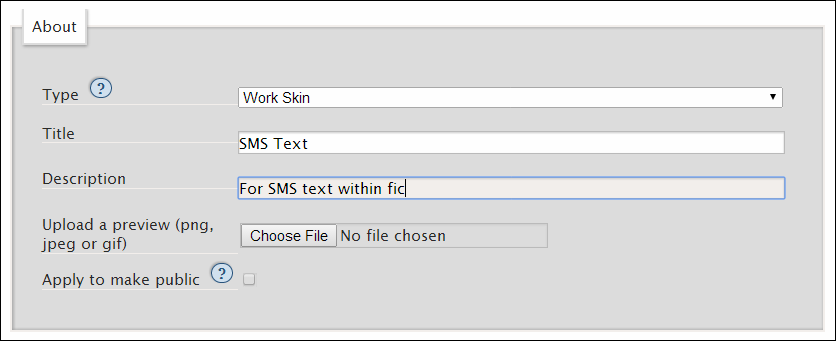
About section of My Work Skins Page with example information

Once you have created your work skin, you may want to return to this form to upload a preview image or to apply to make your skin public for the use of other fans. For now, move down into the CSS text box to continue.

3. Write the CSS

CSS allows you to create a blueprint for how you'd like the HTML in your work to be displayed.

For example, using CSS, you can give instructions in one line of code that makes all your paragraphs look like monospaced computer code. As you might already know, you can do the same thing using an HTML code tag on all your paragraphs--but using CSS has a number of advantages over using HTML all by itself.

Firstly, by separating your work's appearance from its content, aesthetic changes are kept consistent. CSS ensures all items with the same labels are automatically displayed with the same settings. As work skins can be applied to multiple works, this feature is helpful in ensuring series are formatted consistently across all works.

CSS also helps you avoid redundancy by allowing you to define rules that will apply to all matching elements within your text, without needing to retype the same HTML over and over. In the previous example, if you wanted to change all your paragraphs to monospace font using HTML, it would involve adding extra HTML code for every paragraph of your work. Using CSS, on the other hand, you could make this change with a handful of CSS lines that would then apply to every single paragraph (p) tag. As such, using CSS in work skins is ideal for customized or complex styling, while still being easily changeable.

Finally, using CSS for styling instead of HTML avoids violating the principle of Semantic HTML--that is, the idea that HTML should be about describing the meaning of content, not its appearance. Semantic HTML is not only easier for humans to read and write, it's also more accessible: people using screen-readers or other assistive technologies to access AO3 will have a much easier time accessing your work if you use CSS instead of HTML for styling.

CSS Example

If this all sounds a little complicated, don't panic! This example will walk you through the basics of CSS styling in relation to work skins.

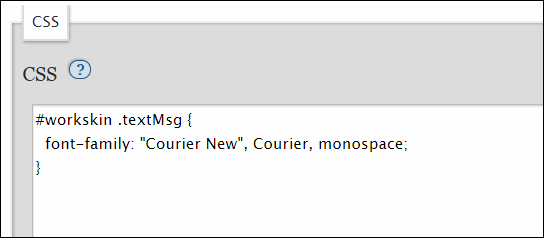
To begin, imagine you want to make the text messages characters send and receive look different from the rest of your work's text. For instance, you might want all SMS text to use a monospace Courier New font, while the rest of your work continues to use the Archive's default font. Using only HTML, this would be impossible, as the Archive does not allow use of the HTML font tag required to select a different font family. Using a work skin, on the other hand, you could easily create a simple CSS rule--a line of code that declares new settings for a particular HTML element--saying that every instance of a newly-envisioned HTML class textMsg should use a monospace Courier New font.

The entire CSS rule could look something like: #workskin .textMsg { font-family: "Courier New", Courier, monospace; }
CSS Example

Let's deconstruct this example.

To start, write #workskin to declare the rule as part of your work skin. This doesn't change, regardless of the kind of rule you're writing.

After this, you specify which section of your HTML the CSS rule will affect; in other words, a "selector". You can apply a rule to any combination of HTML elements and classes. Possible selectors include:

  • Element only: To use an HTML element as your selector, simply write the element name after the #workskin declaration. For example, selecting all paragraph elements (p) becomes #workskin p.
  • Class only: To select all instances of an HTML class, write the name of the desired class preceded by a period. As in our CSS Example, #workskin .textMsg will modify any element in the work with the class name textMsg.
  • Element and Class pair: To select only items with a particular element and class name, combine both methods by writing the element name and the class name separated only by a period: #workskin p.textMsg selects only paragraph elements with the textMsg class.

Following the HTML selector, you'll need to type a left curly bracket ({). This signals the start of your declaration, which defines what your rule is actually going to do.

In the declaration, you write a series of statements that assign a value or values (in this case, "Courier New", Courier, monospace) to a property (in this case, font-family). Your property describes the aspect you would like to change (the font family), while the value you assign it controls the kind of change that will be affected (in this case, changing it to monospace Courier New font style). The two are connected by a colon (:) and the whole statement is followed by a semicolon (;) to indicate that the font-family declaration is finished and complete. You can now type a right curly bracket (}) to close your rule.

In this example, the CSS rule only contains a single declaration; more commonly, rules will consist of several of these statements before closing off. To apply more settings to a single selector, simply end each declaration with a semicolon before defining the next property, and ensure you close the statement with a final semicolon and right curly bracket.

For some more examples of CSS rules and how they are written, you may want to take a look at our tutorial on styling works or any of the other resources listed at the bottom of this article.

4. Applying the Work Skin

Once you've written your CSS, use the Submit button to create your work skin. Congratulations! It will now show up under the My Work Skins header of the Skins section of your dashboard, where you can edit it to add additional rules, add a preview image, or make your skin public for others to make use of.
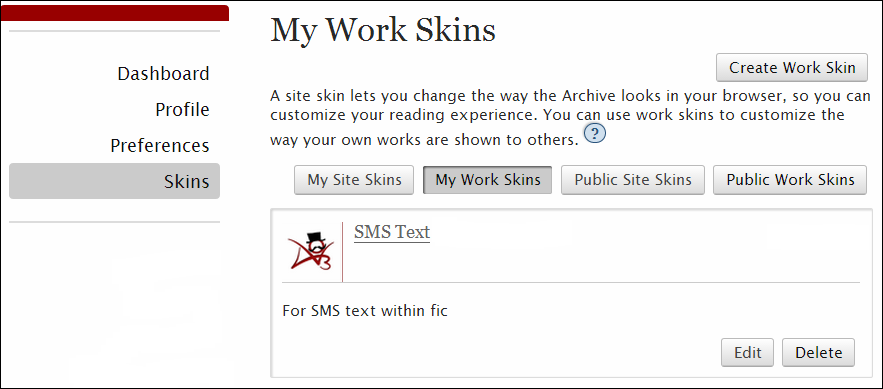
My Work Skins Page with example work skin

Now that your skin has been created, the next step is to link it to the work you'd like it to modify. In order to do this, you'll need to navigate away from the Skins page to the work in question. Select Edit on the desired work, or create a New Work, and scroll down to Select Work Skin under the Associations heading.
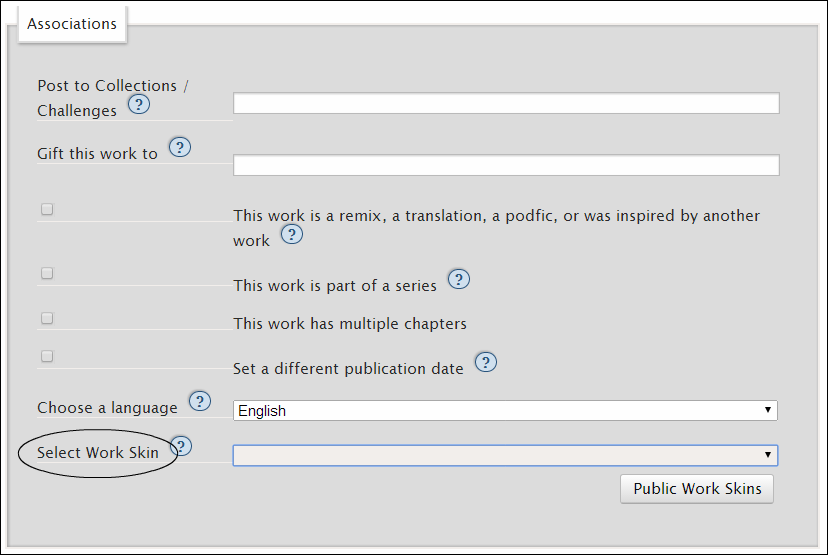
Associations section on Post New Work page

By default, this drop-down box should be populated with two public work skins: "Basic Formatting" and "Homestuck Skin". You should also see any personal work skins you just created listed here. Select the desired work skin and save your work.

5. Formatting the Work

Now that your work and your work skin are linked together, the CSS in your work skin will map onto the HTML elements of your text. For this to work properly, the selectors defined by your CSS rules need to be present in your work.

For example, a CSS rule for paragraph elements (#workskin p { }) will only apply to sections of text in your HTML which are wrapped in the p and /p tags. In this instance, they will work immediately, as p and /p tags are added automatically to your text by AO3's parser. However, this won't be the case for the rules in your work skin which make use of classes or other HTML elements.

HTML class tags can easily be added to both individual paragraphs and in-line text:

  • Paragraph: To apply the settings of the textMsg class used in our CSS example to an entire paragraph, simply add the class name textMsg to the p tag preceding the paragraph: p class="textMsg". No modification needs to be made to the closing /p tag.
  • Span: To apply the settings of the textMsg class to some text within a paragraph, surround the selected text with span class="textMsg" and /span tags.
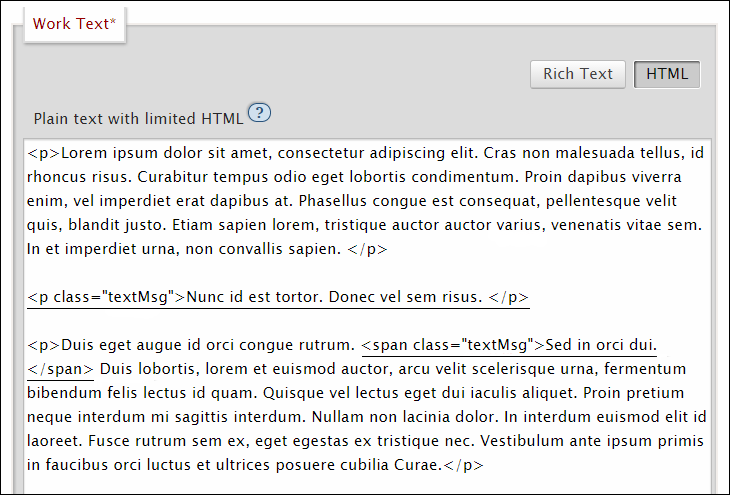
Work Text with included HTML class examples

There are a couple things to remember when adding HTML class tags to your text. Firstly, make sure you're editing your work in HTML mode, not rich text mode, otherwise the changes will not take effect. Secondly, you'll need to use the exact same class name in your HTML as the one you defined in your work skin CSS. Keep in mind these are case-sensitive, so be sure to match the names exactly.

Once you've formatted your text so that it references the items modified in your work skin, hit save and inspect the fruits of your labour. Congratulations! You've just customized a work's appearance on the Archive using a work skin!

Work with applied work skin settings

Useful Links for More Information

Work Skin Resources

Tutorial: Styling Works
Example Work Using Work Skin
Public Work Skins
Homestuck-specific Tutorials

CSS & HTML Resources

AO3 CSS Help
AO3 HTML Help
CSS Tutorial

Comment

Post Header

For privacy reasons, we cannot answer log in questions in comments to this post. If you are having issues logging in, please Contact Support

One of the most frequent problems Support deals with is when users are unable to log in to the Archive. While there are many possible causes for login issues, we've created a list of some of the most common and easiest to resolve.

If you're having trouble logging in to the Archive, here are some places to start your troubleshooting:

Have you activated your account by following the link provided in your registration confirmation email?

If you've recently signed up to the Archive and are having trouble logging in, make sure you've activated your account! Within 24 hours of signing up, you should have received a registration confirmation email from [email protected], asking you to activate your AO3 account using the included link. The activation email usually arrives right after creating your account, but some email providers can considerably delay the delivery.

Once you've activated your account, you should receive an activation confirmation email from the same email address: [email protected]. Sometimes, these emails can get lost in spam filters, so make sure you check these as well! If you can't find either your activation request or an activation confirmation email, and it's been over 24 hours since you registered, you can contact Support asking for your account to be activated by an administrator.

Are you trying to log in with your username (not an email address), and is it spelled correctly?

You can only log in to the Archive with your account username; an email address won't work. If you’ve forgotten your username, or aren't sure if you're spelling it correctly, you can have it emailed to you by requesting a password reset on the New Password page. In addition to a temporary password, the email will include the username associated with the given email address, highlighted in red. Please note that this solution will only work if the email address associated with your account is current, so make sure you always keep your account's contact information up-to-date!

Is your browser or a password manager automatically entering your username/password?

If you're using your browser's auto-complete or a password manager to log in to the Archive, there's a chance the saved username/password combination could be incorrect. To check, delete the pre-filled login information and re-type your username and password manually. Remember to update the auto-complete/password manager entry with the working combination later, to prevent this problem from reoccurring.

Have you tried deleting your browser’s cookies?

Sometimes, login issues can be caused by misconfigured or corrupted cookies. Cookies issues may lead to an error message saying that the password or user name you entered doesn't match our records, even when they are correct, or a condition where you get a successful login message but are not actually logged in. To make sure your cookie settings aren't keeping you from accessing the Archive, check that your browser is set to accept cookies from AO3 and clear your cookies before attempting to access the Archive again. Instructions for managing cookies differ by browser and browser version, but here are some links to get you started:

Have you tried disabling browser extensions/add-ons?

Sometimes, browser extensions or add-ons can interfere with the login process. To ensure your browser settings are not preventing you logging in, disable any additional software associated with your browser by following the links below.

Have you tried logging in using a different browser or device?

If you can successfully log in to AO3 using alternative means, the problem you're encountering is most likely a problem with your browser or device, rather than your account. If this is the case, we encourage you to let us know of such issues by contacting Support, so that we can investigate further. Please remember to include details about the browser(s) and device(s) you've tried, as well as the problem itself.

Have you tried everything above, and still find yourself unable to log in?

If you’ve tried all these steps and are still having trouble logging in, please use this contact form to contact Support directly. Do not share any account information in the comments on this post as all comments are public and can be seen by anyone who accesses this page. Comments containing account information will be removed.

As always, please remember to include as much detail as possible about the specifics of your problem, such as error messages received and your browser/device configuration, so that we can troubleshoot most effectively. Also include which of the above steps you have tried, so we can rule those issues out!

Comment

Post Header

Published:
Mon, 21 Jul 2014 16:22:14 +0000
Tags:

As you may already know, we collect links to userscripts and other third-party tools for use with the Archive in our Cool Stuff FAQ. It's a fairly hidden page, and we have plans to create a dedicated space for it, but until then, this is where you find links to scripts and add-ons like AO3 Savior.

Unfortunately, the most popular script repository (userscripts.org) has been down for a while and will probably not come back. As a result, some of our links are broken right now, and while some workarounds exist, we'd prefer to update our links to point to new, hopefully more stable locations.

EDIT (July 29, 2014): All previously broken links have been fixed.

If you've previously uploaded an AO3-related script to userscripts.org, you might want to consider Greasy Fork (review) to re-upload your script, or host it on GitHub, Pastebin or similar. If you do, please let us know through our Support form or as a comment on this post. We'll update the list as soon as we can!

We also have some new tools waiting to be added, and we'll be sure to highlight some nifty additions when we've made sure all links are working again. If you have built a tool that's not on the list yet, please feel free to let us know!

Comment

Post Header

Published:
Sun, 20 Jul 2014 19:26:17 +0000
Tags:

Banner (by Rachel) displaying the title 'AO3 Unlocked' with an open padlock in the background

We sometimes post little tips & tricks to our official Tumblr to highlight some of the many things you can do with your AO3 account, some of them a little more hidden than others. This is a round-up of some recent posts.

Mini-Tutorials

Other Tips & Tricks

Comment

Post Header

Banner by Diane with the outlines of a man and woman speaking with word bubbles, one of which has the OTW logo and the other which says 'OTW Announcement'

The OTW released a video in April that provides an overview of our work and gives non-fans an introduction to fannish works. Our translation volunteers have now produced captions for the video in the following languages: Arabic, Catalan, Chinese, Dutch, Finnish, French, German, Hungarian, Indonesian, Italian, Polish, Portuguese, Russian, Spanish, Swedish and Turkish.

To enable subtitles in your language of choice on the video below, click on the "CC" button next to the volume and HD options.

All these subtitles are also available on the video we have hosted on YouTube. Just click on the rectangular Captions/CC button in the lower right hand corner of the video and select the language.

If you wish to download a copy of the video with your preferred subtitles, use the links below:

Special thanks to all the volunteer translators who worked on this project!

Our Translation team would also love to have this video narrated in as many languages as possible! Can you help? If you're fluent in a language (or more!) other than English and are willing to help record the voiceover track, please contact us. We'd be thrilled to work with you!

Comment

Post Header

Banner by Diane with the outlines of a man and woman speaking with word bubbles, one of which has the OTW logo and the other which says 'OTW Announcement'

Along with the increase in donations the OTW received during our April drive, we also got new people in as members of the OTW! As a result, we wanted to provide an update on how you can stay in touch with the OTW, whether it's to contact us directly or just keep up on news from the OTW at large or its projects.

Official vs. Unofficial Accounts

Many people choose to subscribe to OTW news through either their social media accounts or through feed readers. There are some important differences to these choices, though, which can affect both the news you receive and how you can get in touch with us.

We list all our active accounts on the OTW homepage at transformativeworks.org. However, sometimes fans have set up feeds, or even unofficial accounts, on the same platforms we use. Unofficial accounts sometimes make that status clear and sometimes they don't, but they generally have someone running them. On the other hand, feeds are like television broadcasts -- they are automated, the information only stays up temporarily, and you can't contact us from those accounts.

Official accounts are individually posted to by the Communications Committee, and we receive comments and questions submitted to the OTW through those accounts. So if you're in doubt, please check the account you're following compared to the accounts listed at the link above. If you're not subscribed to one of those, you are not following an official account.

Contacting Us

If you want to get in touch with us, you can also use our Contact Us page. If you're not sure who to direct your question to, try Communications, and if we don't have the answer we can send your message on to the OTW section that can help you.

The OTW can be contacted in all of the following languages: Arabic, Catalan, Chinese, Dutch, English, Finnish, French, German, Hungarian, Indonesian, Italian, Korean, Polish, Portuguese, Spanish, Swahili, Swedish, Turkish.

Finding Information

Another drawback to feed accounts is that due to the limited time that posts appear on them, they are not searchable. If you would like to find previous news posts from the OTW, you can visit our homepage and use the searchbox in the upper right corner.

Alternately, our OTW Pinboard account provides tagged, searchable bookmarks to all our news releases and posts on OTW News, as well as from Fanhackers and more recent news from AO3. The brief format of the site allows you to easily scan everything under a particular tag, such as all news from a particular project or anything put out by a particular committee.

Access to Our Accounts

We are aware that people are often blocked from accessing our sites, whether it's a social media account or the OTW website itself. This is one of the reasons why we maintain official accounts in multiple locations.

While for many these restrictions may be due to local blocks from a school or business, China's firewalls block Facebook, Twitter and Google domains, in favor of homegrown social networks Renren, Weibo, and search engine Baidu. In 2012, Russia accidentally censored all of LiveJournal by blocking LJ's IP address. Various other countries block one or another social media site or domain such as Turkey and Vietnam. However, sometimes firewalls allow filtering for specific topics and words rather than necessarily blocking entire websites.

If you are unable to follow us at one platform, hopefully another one of our sites will be available to you. We are always examining additional locations for official accounts in order to best reach fans, and you are welcome to send us suggestions. Although current staffing or workloads may prevent us from expanding in the near future, we will keep requests in mind as part of long-term planning.

Promoting us!

We've had a few questions recently about promotional graphics and other ways to promote the OTW. You can find those under our "How to help" section on our website. We'd like to review and add to what's there, so if you have any ideas about content you'd like to have available, particular sizes, etc., let us know!

And don't forget, you can always share the OTW video as well!


Comment

Post Header

In one of our next code updates, we're going to be rolling out some changes to the FAQ section of the Archive. Here's a little information on what improvements the new FAQ will include, and what this change means for you.

Improvements

As one of the main improvements, it will enable easy translation of questions and answers. Our volunteer translators will be able to submit their work to the FAQ and link it to the corresponding English text. The new interface for users will introduce a simple drop-down box for filtering the FAQ by language.

Screenshot 1
[Work-in-progress screenshot of the new FAQs, here depicting the list of available topics in Portuguese]

The new FAQ interface will benefit from a cleaner, easier-to-edit structure that makes adding questions to categories more straightforward. Browsing the FAQ will also be a lot easier: we'll improve our index page, so that you can see at a glance a full list of questions without having to read through the entire page.

Screenshot 2
[Work-in-progress screenshot of the new FAQs, here depicting the list of all available questions for one topic in Spanish]

Expected Issues

We had to make significant changes to the existing code to enable these new features. In addition, our AO3 Docs team has been working on a new and improved FAQ structure, as well as updates to the existing sections. New content will be added as work on these updates progresses.

As a result, old links to the FAQ might stop working or will link to an unexpected section of the new FAQ. For example, the link to the Bookmarks FAQ might suddenly lead you to the FAQ about Downloads. Please bear this in mind if you have linked to the FAQ on another site, as these links will likely need updating. FAQ links included previously within AO3's official communication (for instance on AO3 News or in previous Support replies) will also be affected, although we will do our best to update our own resources.

Finally, there's a chance that internal links from one section of the FAQ to another will also break temporarily as we wire the new FAQ together. There's a small possibility that following the code deploy, the FAQ section will be empty as we work on re-adding all existing content.

Looking Forward

We're excited about these latest updates: we hope that they'll not only improve our documentation and make it easier for you to find answers to your questions, but will also be a big step forward in beginning to make the Archive accessible in different languages for fans around the world. Many thanks to our teams of translators, documentation volunteers, coders and testers for all of their work on this project! We hope you find these changes helpful, and we look forward to your feedback.

Comment

Post Header

In one of our next code updates, we're going to be rolling out some changes to the FAQ section of the Archive. Here's a little information on what improvements the new FAQ will include, and what this change means for you.

Improvements

As one of the main improvements, it will enable easy translation of questions and answers. Our volunteer translators will be able to submit their work to the FAQ and link it to the corresponding English text. The new interface for users will introduce a simple drop-down box for filtering the FAQ by language.

Screenshot 1
[Work-in-progress screenshot of the new FAQs, here depicting the list of available topics in Portuguese]

The new FAQ interface will benefit from a cleaner, easier-to-edit structure that makes adding questions to categories more straightforward. Browsing the FAQ will also be a lot easier: we'll improve our index page, so that you can see at a glance a full list of questions without having to read through the entire page.

Screenshot 2
[Work-in-progress screenshot of the new FAQs, here depicting the list of all available questions for one topic in Spanish]

Expected Issues

We had to make significant changes to the existing code to enable these new features. In addition, our AO3 Docs team has been working on a new and improved FAQ structure, as well as updates to the existing sections. New content will be added as work on these updates progresses.

As a result, old links to the FAQ might stop working or will link to an unexpected section of the new FAQ. For example, the link to the Bookmarks FAQ might suddenly lead you to the FAQ about Downloads. Please bear this in mind if you have linked to the FAQ on another site, as these links will likely need updating. FAQ links included previously within AO3's official communication (for instance on AO3 News or in previous Support replies) will also be affected, although we will do our best to update our own resources.

Finally, there's a chance that internal links from one section of the FAQ to another will also break temporarily as we wire the new FAQ together. There's a small possibility that following the code deploy, the FAQ section will be empty as we work on re-adding all existing content.

Looking Forward

We're excited about these latest updates: we hope that they'll not only improve our documentation and make it easier for you to find answers to your questions, but will also be a big step forward in beginning to make the Archive accessible in different languages for fans around the world. Many thanks to our teams of translators, documentation volunteers, coders and testers for all of their work on this project! We hope you find these changes helpful, and we look forward to your feedback.

Comment

Post Header

Banner by Diane with the outlines of a man and woman speaking with word bubbles, one of which has the OTW logo and the other which says 'OTW Announcement'

The OTW's April membership drive has officially ended, and we'd like to thank everyone who came out to support it. Your generosity and efforts in spreading the word have made this our most successful drive ever! Since April 3 we've received more than 2,800 individual donations totaling over US$63,000. We've also raised the OTW's membership to at least 4,869 people!

Thank you to all our members, donors, and to everyone who helped spread the word to make this drive such a spectacular success. We’re very grateful for your support! We’d also like to thank all the OTW staffers and volunteers who supported the drive by creating, translating and posting content, responding to donor inquiries, designing graphics, sending e-mail blasts, monitoring donation receipts, and myriad other tasks. Thank you for making the drive possible.

Although this drive is over, we gratefully accept donations throughout the year. This year we also have a very special project to share with you, that you may want to use when telling others why you support the OTW.

Thanks to the amazing vidding skills of Ash48, and the fanwork contributions of dozens of fans, we are proud to present a video introduction to the OTW.

The OTW video explains to people unfamiliar with fandoms and fanworks what it is that the OTW does. It defines transformative works, and provides an overview of our projects as well as an insight into what fans create.

We hope that you'll share the video with fans and non-fans alike. You can find it on YouTube, Vimeo, and Critical Commons, as well as on the OTW website.

The OTW's volunteer translators are currently working on subtitles for Arabic, Catalan, Chinese, Dutch, Finnish, French, German, Indonesian, Italian, Polish, Portuguese, Spanish, Swedish and Turkish. As each translation is completed, we will be sending out tweets and tumblr posts promoting it.

We would also love to have this video narrated in as many languages as possible! Can you help? If you're fluent in a language (or more!) other than English and are willing to help record the voiceover track, please contact us. We'd be thrilled to work with you!

The participation and collaboration of fans everywhere is what keeps the OTW and all its projects going. Thank you for being a part of it!

Comment

Post Header

Published:
Wed, 01 Jan 2014 01:51:21 +0000
Tags:

Random Letter #2: How can I contact other users? Do you have a PM feature?

This is a question we get asked a lot, and we're always sorry to say that no, you can't message someone privately on the Archive yet. The feature is listed on our Roadmap, but it'll be a while yet before we can offer PMs.

On the one hand, we want to carefully consider how the new messages would fit into the current inbox layout and which features are needed right from the start to ensure user privacy and prevent abuse. We also need to optimize our mail server settings and code to handle even more emails (we currently send out around 880,000 emails per week) without getting blocked by spam filters.

On the other hand, we want to sit down with our Abuse and Support teams to come up with rules and policies to handle, for example, reports of harassment through private messages. We will also draw on their expertise in designing the feature, as they are the ones who most interact with our users.

Until we have built-in messaging, we recommend including some kind of contact information in your profile (the link to a user's profile can be found right at the top of the Dashboard / Works / Bookmarks / Gifts etc. links at the left):

If you're logged in and looking at your own profile, you will see a "Edit My Profile" button at the bottom. Once clicked, you can add links and information to your "About Me" section: your Twitter account, your Tumblr, your Dreamwidth, or anything else you feel comfortable sharing. Keep in mind that this information will be visible to everyone, not just logged-in AO3 users.

If you have any more questions, let us know via a Support ticket!

Comment


Navigation